Power BI Apps are the cleanest way to share reports with business users. But in many organisations, getting access to one still works like this: someone sends an email or a Teams message, it waits in an admin’s inbox, the admin opens the app settings and adds the person by hand, and a couple of days later the user finds out (or not) that they’re in. There is no record of who asked, who approved, or why.
This post shows a small, working setup that replaces that with a self-service request and an approval by email, using only tools most Microsoft 365 tenants already have: SharePoint lists, Power Automate and Microsoft Entra ID groups.
The problem
Let’s say Company A publishes a Power BI App called Sales Dashboard. Access is managed manually:
- Requests arrive through different channels (email, chat, a hallway conversation).
- Whoever manages the app adds users one by one to the app audience.
- Approvals, when they happen, are buried in email threads.
- Nobody can easily answer “who has access to Sales Dashboard, and who approved it?”
The goal is a process where:
- The user asks for access in one place.
- The right business approver gets the request by email and approves or rejects it there.
- If approved, access is granted automatically.
- The user is told the outcome.
- Every step leaves a record.
Solution overview
The key design decision is to never grant access to individuals. Each Power BI App audience gets a group, and the automation only manages group membership. Power BI does the rest.
| Component | Role |
|---|---|
| Entra ID group (one per app) | Added to the Power BI App audience. Anyone in the group can open the app. |
SharePoint list AccessRequests | Where users create their requests. Also the audit trail. |
SharePoint list AccessAppConfig | One row per app: app name, group ID and approver. |
| Power Automate flow | Runs the approval and adds the user to the group. |
The config list is what makes this scalable: to put another app under the same process, you add a row to AccessAppConfig. The flow doesn’t change.
Step 1. Prepare Entra ID and the Power BI App
First, a group for the app. I named it after the app it protects, and used the description to say what membership means:
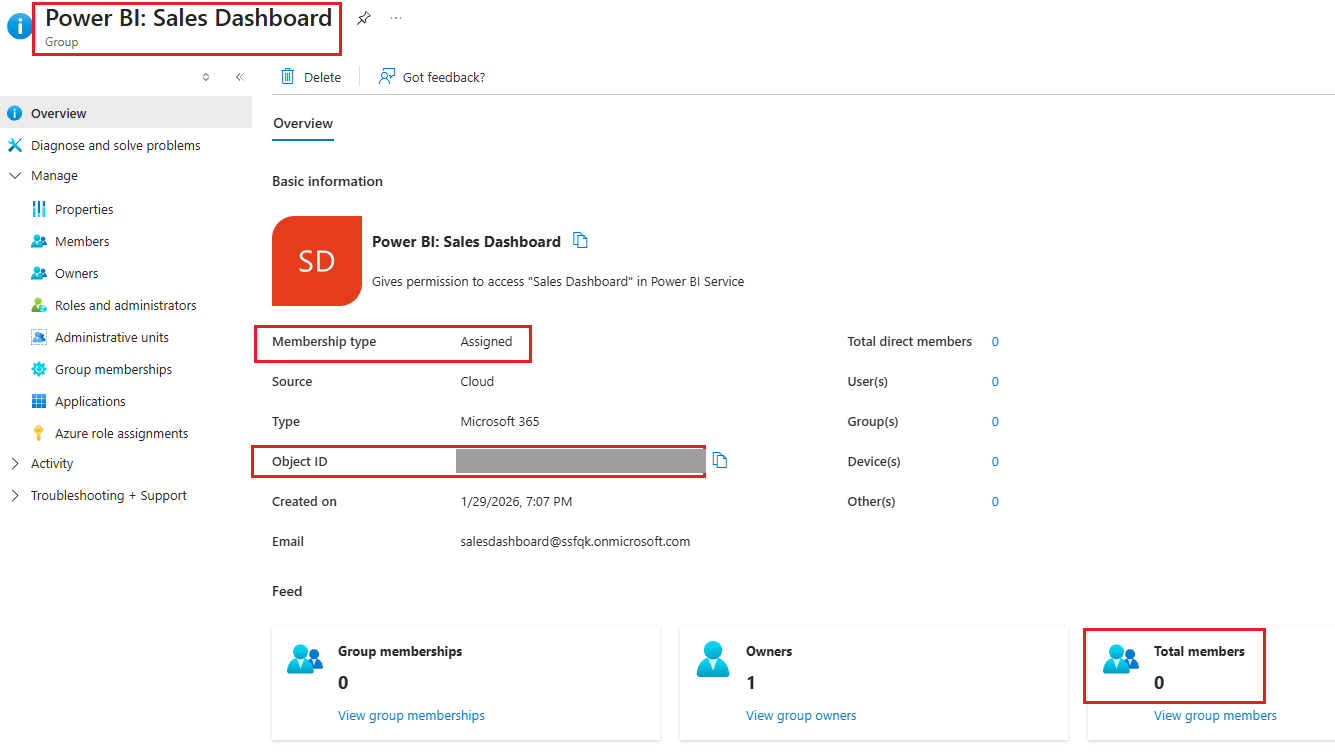
In this proof of concept the group is a Microsoft 365 group. If you go that way, make sure it’s Private: in a Public Microsoft 365 group, anyone in the organisation can join on their own from Outlook or Teams, which would skip the approval entirely. With a Private group, only owners (and the flow) add members. In production I’d use a security group instead (see What I’d change for production below).
Then, in the Power BI App, edit the audience and grant access to that group instead of to individual users:
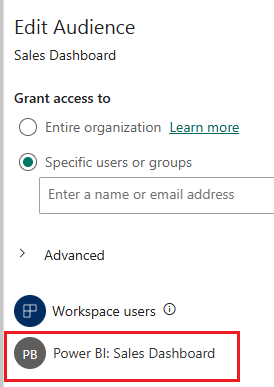
From this point, anyone who is in the group can open the app. Nobody needs to touch the app settings again.
Step 2. Create the SharePoint lists
The first list, AccessRequests, is where users ask for access. It’s on a site everyone in the company can reach.

Columns:
RequestedByUPN: the requester’s email address (user principal name).
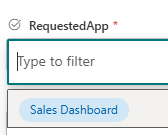
RequestedApp: a Choice column with the apps you can request. A drop-down instead of free text, so every request matches an app name exactly.
Justification: why the user needs access. It’s shown to the approver.
Status: a Choice column,
Newby default, thenApprovedorRejected. I also addedPending Approvalfor later use.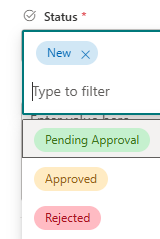
ApproverComments: filled in by the flow with whatever the approver writes when answering.
Title (the list’s default column), shown to the approver as “Access requested for”. It’s there for requests made on behalf of a colleague, and stays empty when you ask for yourself.
The second list, AccessAppConfig, is the configuration. One row per app:

- Title: the app name, exactly as it appears in the RequestedApp choices.
- GroupId: the Object ID of the Entra group from step 1.
- ApproverEmail: who approves access to this app.
Step 3. Build the flow
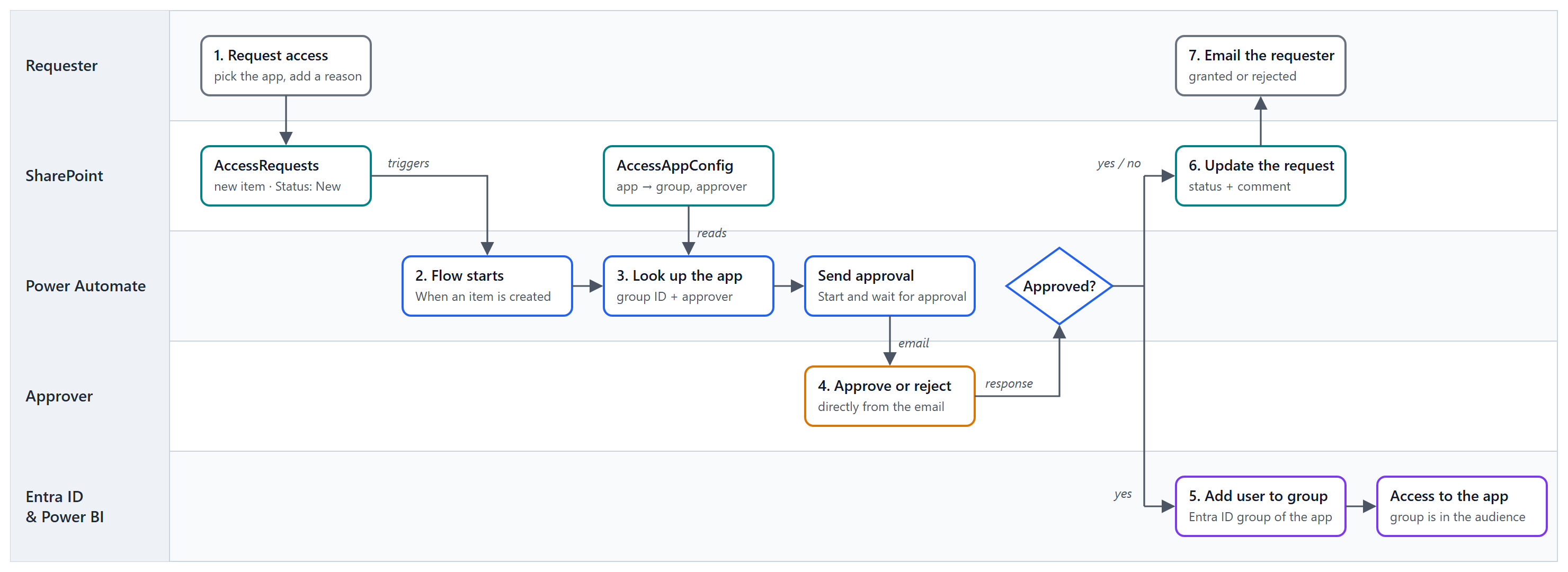
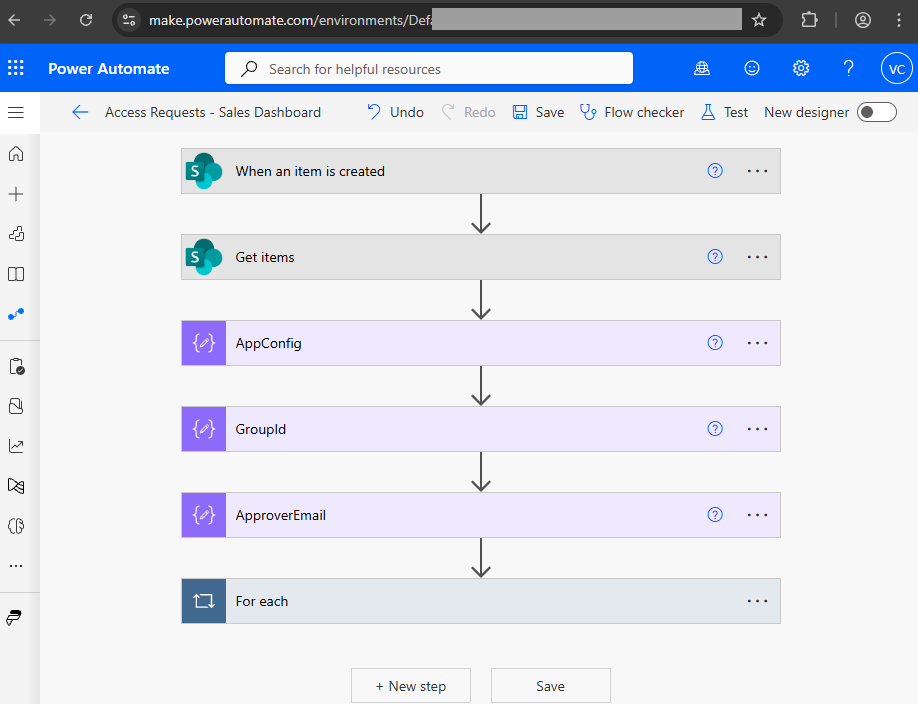
Here’s the whole flow at a glance:
Trigger: a new request
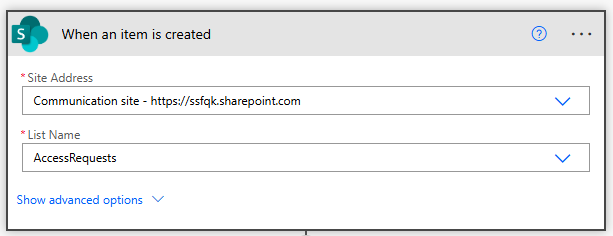
The flow starts when an item is created in AccessRequests:
Look up the app configuration
Get items reads AccessAppConfig, filtered to the app in the request. Because RequestedApp is a Choice column, the value sits one level down:
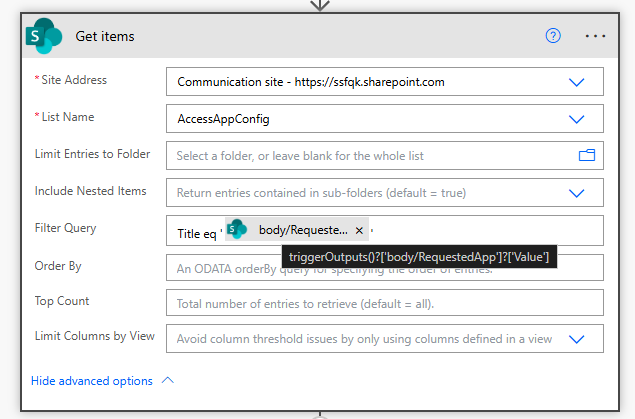
Title eq '@{triggerOutputs()?['body/RequestedApp']?['Value']}'
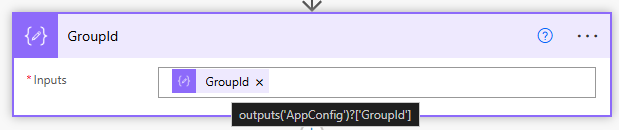
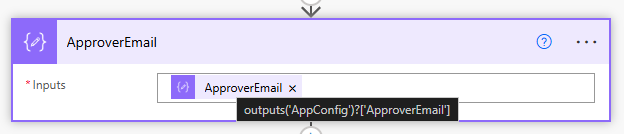
Get items always returns a list, even when there’s only one match, so three Compose actions pick the first row and pull out the two fields the flow needs:
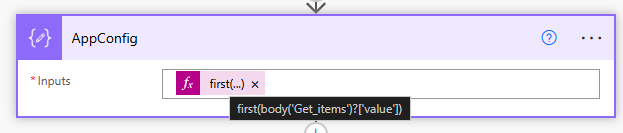
first(body('Get_items')?['value'])
outputs('AppConfig')?['GroupId']
outputs('AppConfig')?['ApproverEmail']
Ask for approval
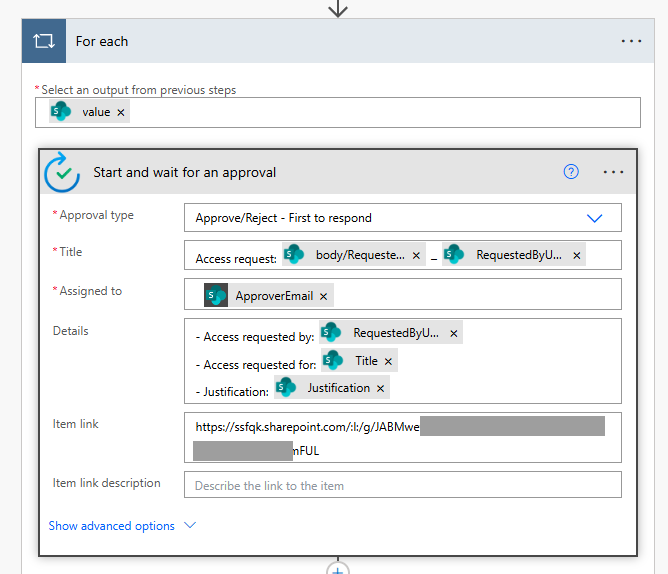
Start and wait for an approval (Approve/Reject – First to respond) sends the request to the approver from the config list, with the requester, the app and the justification in the details:
Approved or rejected
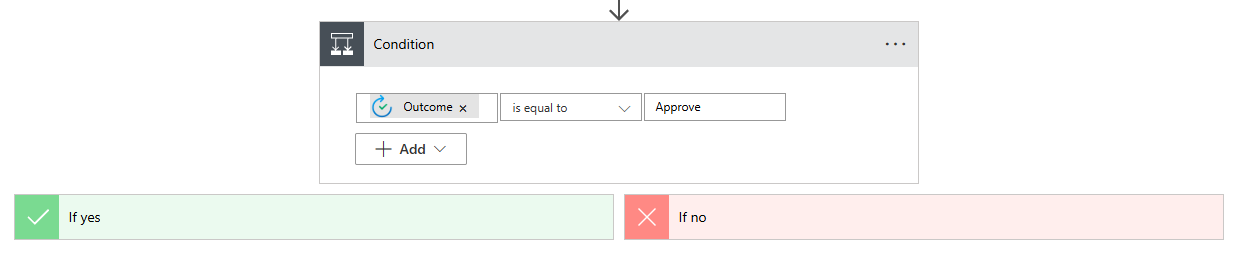
A condition checks the outcome:
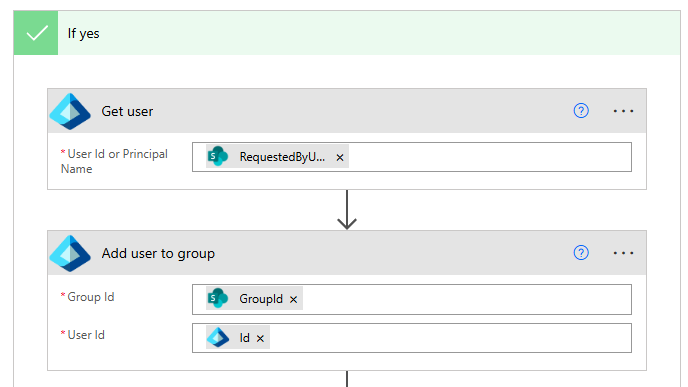
If approved, the flow looks up the requester in Entra ID and adds them to the app’s group:
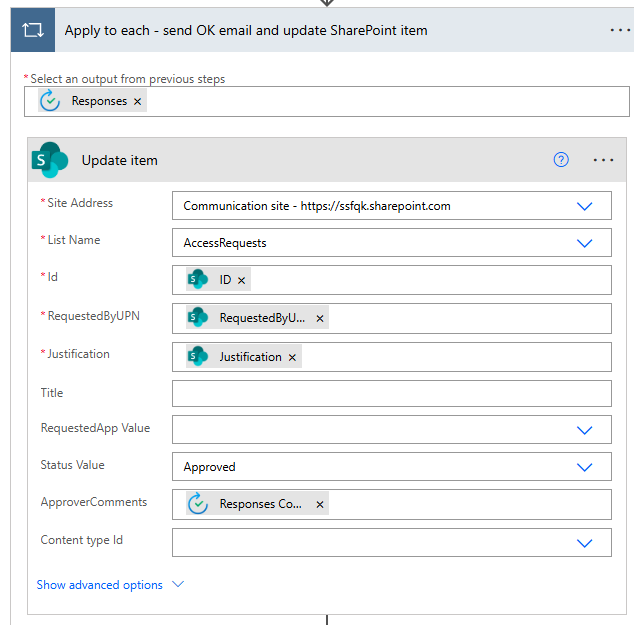
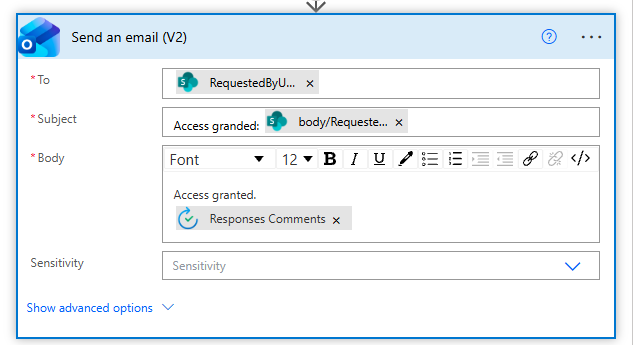
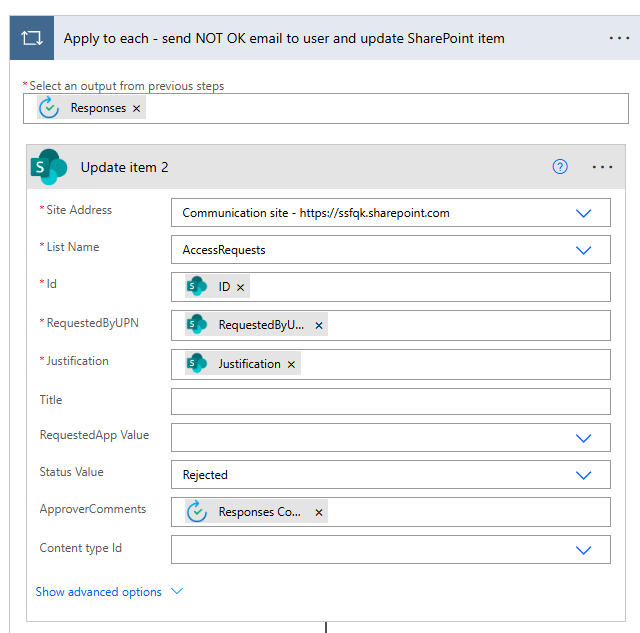
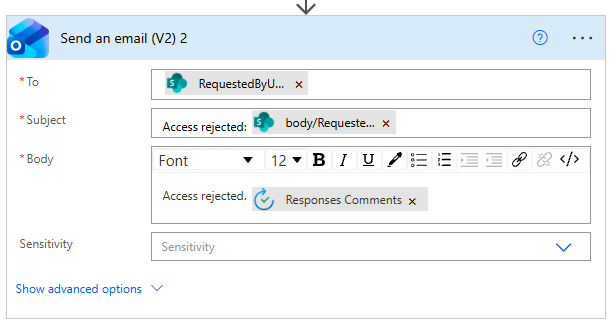
Then it updates the request in SharePoint with the status and the approver’s comment, and emails the requester:
If rejected, the same two steps run with Rejected, and no group membership changes:
Step 4. Test it end to end
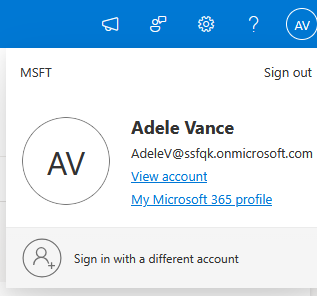
The test user is Adele Vance, one of Microsoft’s demo users, in my test tenant:
Adele creates a request for Sales Dashboard. It arrives with status New:

The config list says who approves Sales Dashboard and which group gives access to it:

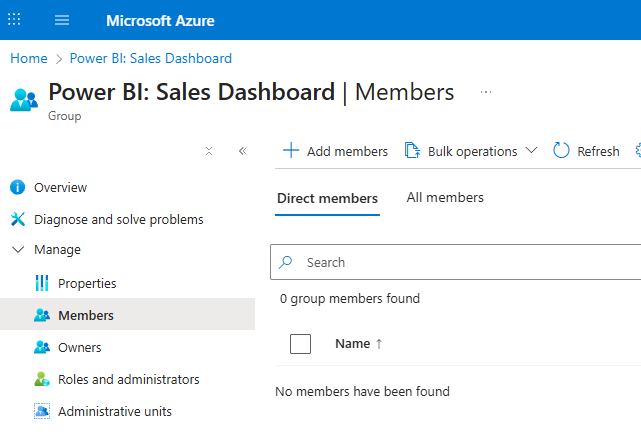
And before the approval, that group is empty:
The approver receives the request by email:
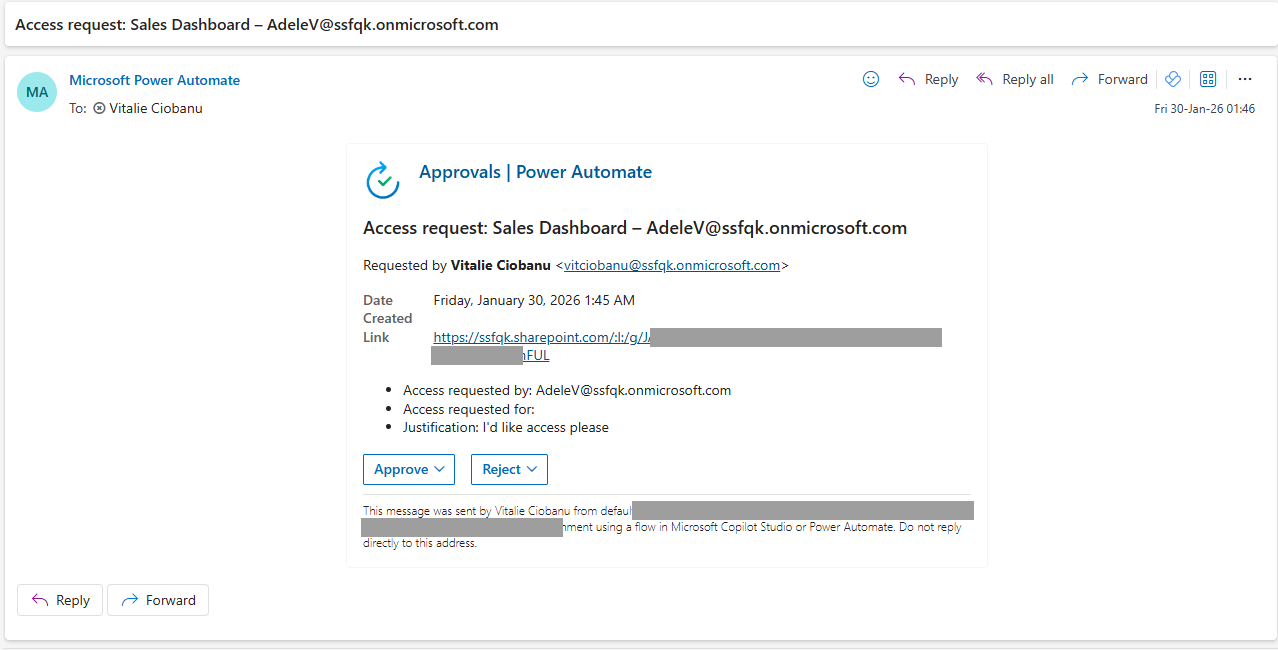
Two details in this email:
- “Requested by” shows the flow owner, not Adele. Approvals always show the account whose connection created the approval. That’s why the email title and Access requested by name the actual requester.
- “Access requested for” is empty because Adele asked for herself. It’s only filled in for on-behalf-of requests.
The approver approves directly from the email and adds a comment:
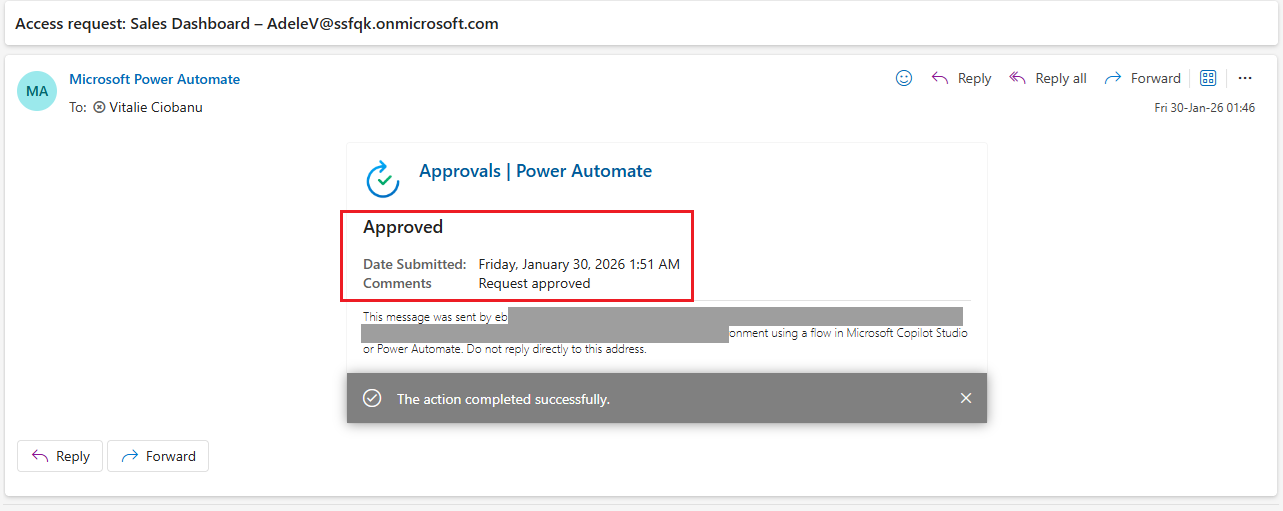
Right after the approval, Adele has two new emails:
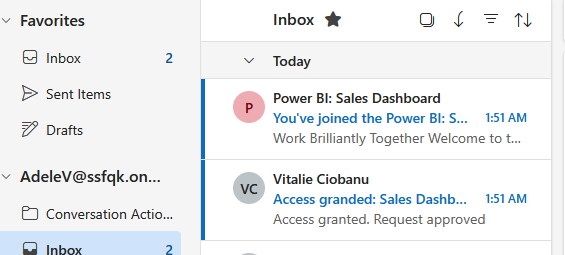
The first comes from the flow and confirms the access:
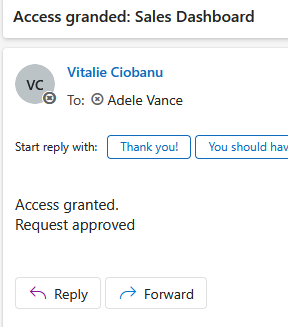
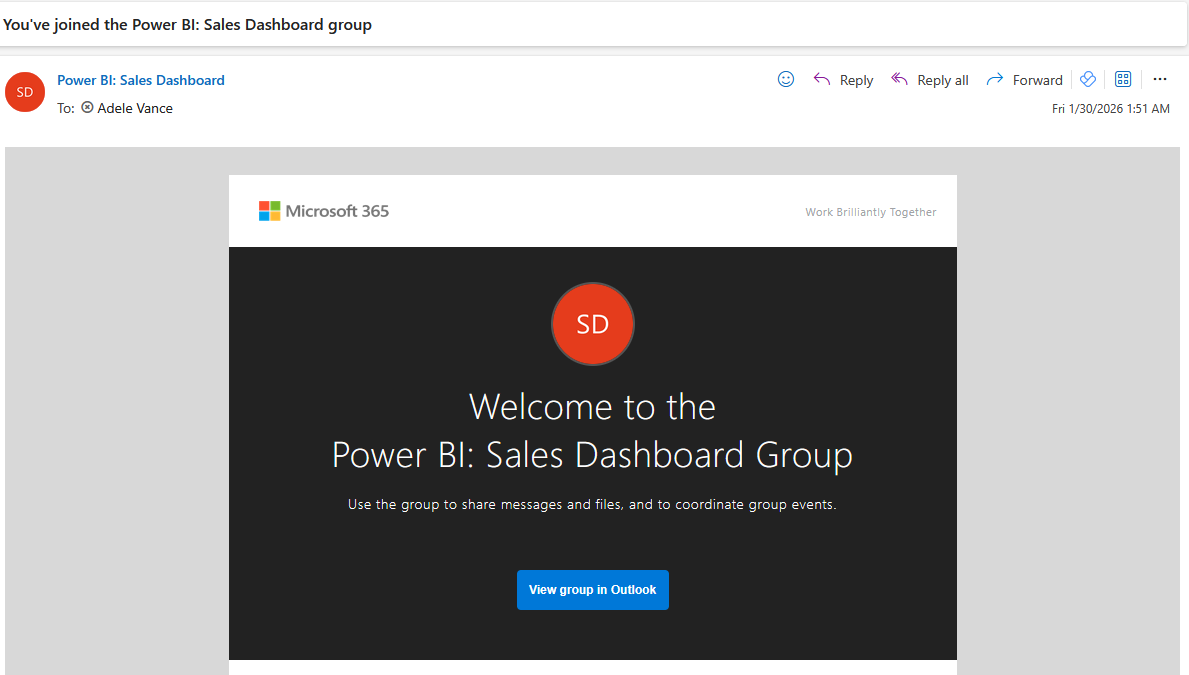
The second isn’t sent by the flow. It’s the automatic welcome message that Microsoft 365 groups send to new members. With a security group, it wouldn’t arrive.
The request in SharePoint now shows who approved it and why, without anyone editing it:

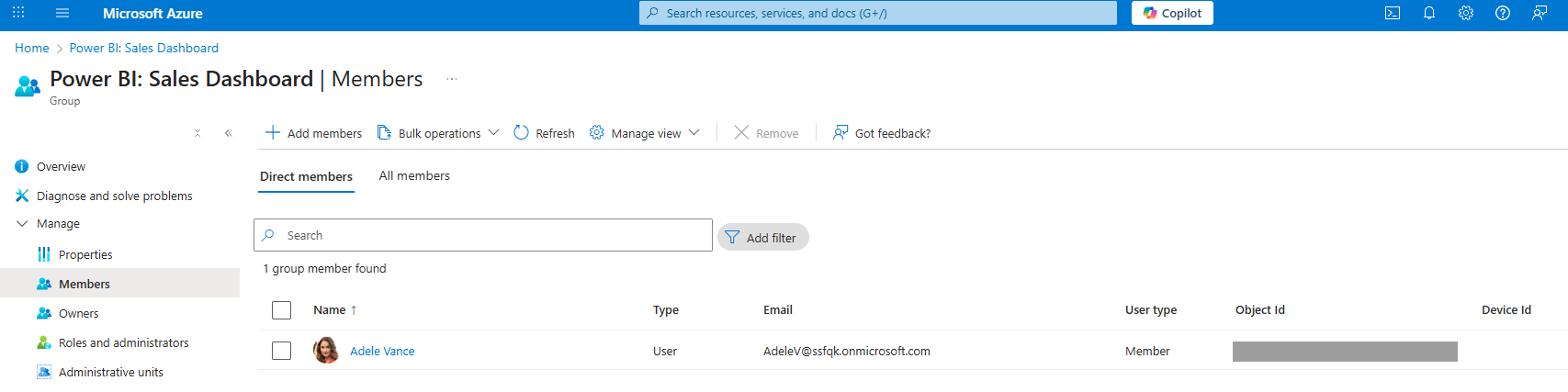
And Adele is in the group:
The catch: access to the app is not access to the data
Adele opens the app, and… nothing loads:
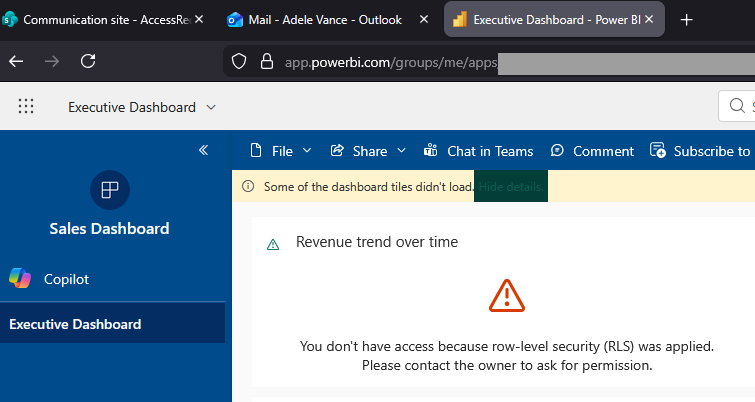
This is working as intended. The report uses row-level security (RLS), and Adele isn’t in any RLS role. Being in the app audience lets her open the app. It doesn’t decide which rows she can see.
So a complete access process has to cover both:
- App access: the audience group, handled by this flow.
- Data access: the RLS role. The simplest option is to add the same group (or a dedicated one per role) to the RLS role in the semantic model. Then one approval grants both. For row filters that depend on the user (each country manager sees only their own country, for example), dynamic RLS with a mapping table is the usual pattern.
What I’d change for production
The proof of concept works, but a few things would need tightening before real users depend on it:
- Use a security group. For pure access control, a security group has no mailbox, no welcome email, and no “join” option for users. If you keep a Microsoft 365 group, make sure it’s Private.
- Don’t trust a typed email address. RequestedByUPN is free text, so in theory anyone could request access for someone else. Use the list’s built-in Created By field as the requester instead. For on-behalf-of requests, add a Person column (“Requested for”) and have the flow add that person, with the approver seeing both names.
- Link to the request, not the list. The approval’s Item link should be the trigger’s Link to item, so the approver lands on the exact request.
- Run the flow under a service account. Flows tied to a personal account break when that person leaves, and the approval emails show their name. The account that runs the flow only needs to be an owner of the app groups, not an admin.
- Handle the edge cases. Add user to group fails if the user is already a member, and Get user fails if the address doesn’t exist. Wrap those actions in a scope, check membership first, and set the Status to an error value instead of letting the run fail silently.
- Drop the For each. The approval sits inside a loop over the Get items result. Since there’s only one config row per app, the Compose outputs alone are enough.
- Make access expire. Approved access tends to stay forever. A scheduled flow could ask approvers to confirm access every few months, or remove members after a set period.
- Consider the native option. If your tenant has Microsoft Entra ID P2 or ID Governance licences, entitlement management (access packages) provides requests, approvals, expiry and access reviews out of the box. The flow in this post is the lightweight version for tenants with standard licences.
Conclusion
The flow itself is small, but the design choices are what make it hold up: groups instead of individuals, a config list instead of hard-coded values, and a SharePoint list that doubles as the audit trail. Access requests stop living in inboxes, and the question “who has access to this app, and who approved it?” has an answer you can filter.