Many organisations depend on Configuration Management Databases (CMDB) to keep track of their Configuration Items. However, the value of these systems/databases depends completely on the quality of the data inside them. If computers are retired but are still powered on and on the network, or if operating systems and IP addresses are not updated correctly (ideally by a discovery tool), the CMDB becomes unreliable. And when the information is old or obsolete, it becomes difficult to trust the database for daily operations (think Change or Incident Management), security decisions or audits.
Issue
Let’s say Company A is using ServiceNow CMDB to keep track of their end user computers. Even with strong ITIL processes in place, the information drifts over time. Retired computers or servers still appear as active, being found on the network after decommissioning completes. When this happens, vulnerability issues, support questions etc. appear.
Reconciling solution
Ideally, each company should have at least one discovery tool and only one must be considered as Master Data Management tool. If this is not the case and CMDB is manually updated, a practical way to improve accuracy is to compare the data from different tools and then update CMDB manually.
Let’s also assume that our Company A uses Qualys for their vulnerability management but also relies on its discovery capabilities to get a view of their devices on the network. This discovery often detects computers that are misclassified in ServiceNow. By exporting a list of computers from ServiceNow and a discovery report from Qualys, it becomes possible to reconcile the two datasets. This comparison highlights mismatches, missing entries and duplicates.
Solution
Let’s assume we have the following report from Qualys:

And the following from ServiceNow with current data in the CMDB:

These Excel files are saved weekly into the same folder using the same file names: ServiceNow.xlsx and Qualys.xlsx.
We’ll create a new Excel file called Reconciling ServiceNow and Qualys.xlsx. It can be placed in the same folder or anywhere else.
We’ll load both ServiceNow.xlsx and Qualys.xlsx to Power Query as separate queries.
After doing the basic transformations (renaming columns and ensuring proper data type is set) in both queries I ended with this:


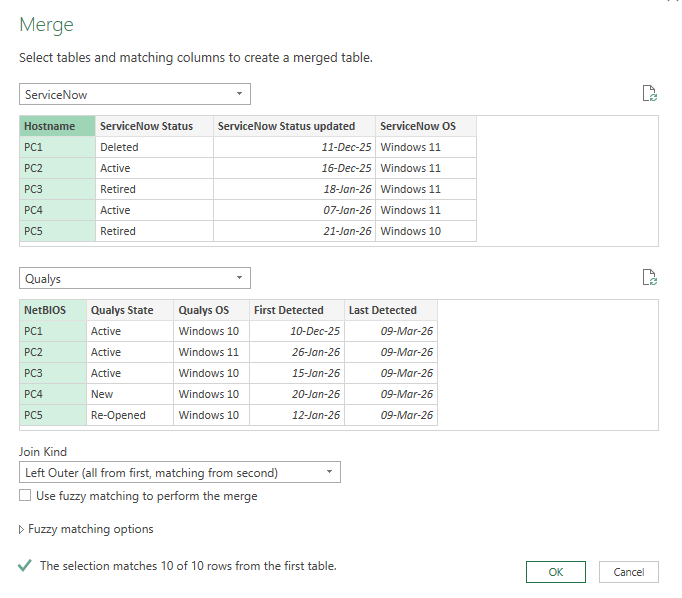
Merging both queries into a new one using Hostname and NetBIOS columns:


Expanding Qualys column ensuring NetBIOS column is not selected and also the original prefix is unchecked:

The initial Merge1 query looks like this:

Because I want to reconcile both the Status and OS fields, I will create a duplicate of this Merge1 query to save time and avoid repeating the merge again (remember – I’m lazy, so I’ll automate and reduce the steps/clicks as much as possible).

I will rename the queries to more meaningful and descriptive names: Status mismatch and OS mismatch.

Now, in the Status mismatch query I will remove unneeded OS columns . And in OS mismatch query I will remove ServiceNow Status, Qualys State, ServiceNow Status updated and First Detected columns. Here I only need the OS info and when discovery last saw the device.


Focusing on the status mismatch issue, in the Status mismatch query I will add a conditional column that will check if the value in ServiceNow Status and Qualys Status columns is the same. If yes, then I will return OK, else Mismatch.

This will create a new Status recon column with the information I need and with this, I have my status reconciliation query ready. I can see that between the 2 tools, Status matches only for PC2. Since this data is totally invented by me, this is fine to show this issue and how to find the discrepancies.

Moving on to OS mismatch issue. In the OS mismatch query I will also add a conditional column that will check if the value in ServiceNow OS and Qualys OS columns is the same. If yes, then I will return OK, else Mismatch.

This will create a new OS recon column with OK or Mismatch values again. I can see that between the 2 tools, OS matches only for 3 computers.

Now, I only need the 2 mismatch queries in Excel as I will only want to verify these. So from the Home ribbon I will select Close & Load and then Close & Load To.

In the Import Data box select Only Create Connection and click OK. Otherwise, all queries will be loaded to your Excel, each on separate worksheets.

Now, from the right pane – Queries & Connections, right either Status mismatch or OS mismatch and select Load To.

Select Table and New worksheet. This will add the data from the selected query to a new worksheet and will give the worksheet the same name.


Repeat the “load to” operation for the other mismatch query. We’ll end up with a new worksheet with the data from the other query.

We can safely delete Sheet1 or any other worksheet if we’ll not need it.
Since this is a sample data with 10 rows only, imagine having reports with hundreds of thousands of rows. We will need to filter the recon columns to show Mismatch only, as everything else will be ok. So it would be best to filter out these rows directly, thus avoiding this additional step in Excel’s table.
Opening Power Query again, I will filter out OK values from the recon columns in both queries.


Closing and loading data to Excel, I can see my tables are not showing only mismatch rows so from here, I can move on with checking the processes and seeing what went wrong in the CMDB process and make the needed updates.

Once the queries are configured and loaded into Excel, the weekly workflow becomes simple: export the two reports, place them in the same folder keeping same file names and refresh the Excel file using Data – Refresh All. Power Query handles the rest, updating table if new data matches our recon conditions.
The best thing? The export is done within minutes or seconds if this action is automated. Also, Excel work is also completed in seconds, so no more spending time to open different files and doing vlookups and so on.